


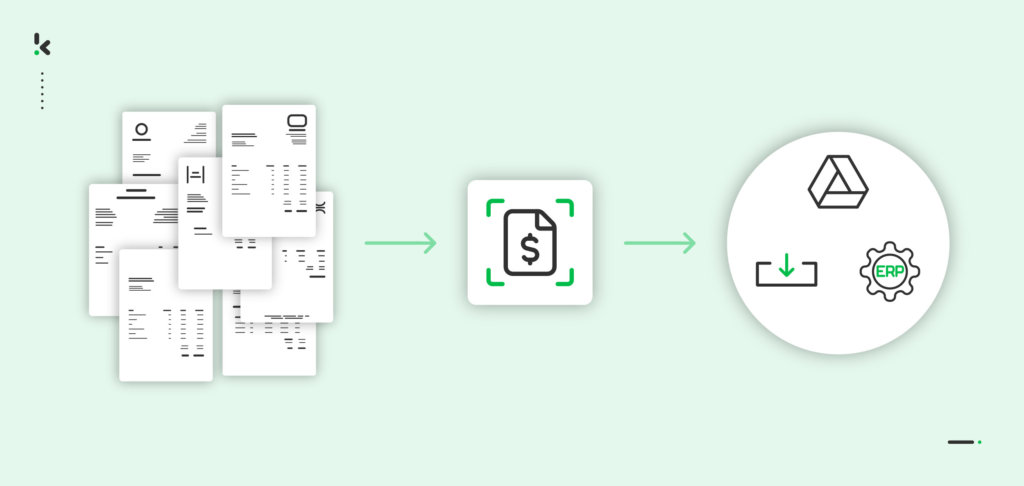
Invoice processing is one of a company’s most important elements. It helps small and large businesses ensure accurate payments on time. But that doesn’t make it less tedious and time-consuming, especially when executing it manually. It’s a process that not only requires human labor but also presents several challenges, such as manual data entry errors, increased operational costs, and processing delays.
According to a study by the Institute of Financial Operations and Leadership (IFOL), 56% of respondents spend over ten hours a week processing invoices and supplier payments. That’s a lot of hours spent on just one task, right?
Luckily, there’s a smarter way to handle this. And that’s where batch invoice processing comes in. By automating your batch invoice processing, you can eliminate these challenges, save valuable time, and enhance accuracy.
So, are you ready to transform your invoice processing? In this blog, we’ll explore the step-by-step process of automating your batch invoice processing.
Key Takeaways
- Batch (bulk) invoice processing means handling large volumes of invoices in one go rather than one-by-one, which is ideal for high-volume environments.
- Manual invoice processing is time-consuming, error-prone, and costly. Automation is the smarter path.
- Key steps for batch invoice processing include: setting up an account/project, creating a preset for data extraction, choosing/inputting the source folder or channel, and then building a workflow to process the invoices.
- Input sources for batch processing can include cloud storage, email, device uploads, and other external systems, enabling automation from many entry points.
- With the right automation solution, you can extract key invoice data (supplier, date, amount, VAT, etc.), process many invoices simultaneously, and route the results reliably.
- Automating bulk invoice processing delivers real benefits: lower cost, fewer errors, faster processing times, better scalability, and stronger financial operations.
What is Batch Invoice Processing?
Bulk invoice processing, or batch invoice processing, refers to the process of handling large volumes of invoices within an organization. It involves extracting, managing, and processing numerous invoices in one go rather than doing it one by one. This method is ideal for businesses that deal with hundreds of invoices on a daily, weekly, or monthly basis. Automating this process ensures time savings, increased accuracy, and cost efficiency, and offers many more benefits to your business.
How Batch Invoice Processing Works
Once you’ve set up the right workflow, batch invoice processing takes over much of the manual effort in your accounts payable process. It’s all about automating each step, from grouping invoices to executing payments, so large volumes can move smoothly through your system with minimal human input.
Here’s what happens behind the scenes:
- Grouping: Invoices are compiled into batches based on criteria such as vendor, due date, or departmental allocation. This ensures organized processing and easier tracking.
- Data Entry: Automation software extracts key details (e.g., vendor name, invoice date, and amount) from each invoice and automatically populates the corresponding fields in your accounting or ERP system.
- Processing: Once grouped, the batch is processed as a single operation. This may include matching invoices with purchase orders, detecting potential errors or duplicates, and routing them for approval.
- Payment: Approved invoices can be paid collectively in one transaction, via methods such as ACH transfers, SEPA payments, or checks, reducing administrative effort.
- Generation: Batch processing can also be applied in reverse: generating multiple outgoing invoices at once, for instance, in subscription-based or usage-based billing models.
By automating these steps, batch invoice processing turns what used to be a time-consuming, manual workflow into a streamlined operation.
Next, let’s explore the key benefits this approach brings to your finance team.
Benefits of Batch Invoice Processing
By handling invoices collectively instead of individually, organizations gain control, accuracy, and predictability across their accounts payable workflows.
Here are the main advantages:
- Increased Efficiency: Processing invoices in bulk significantly reduces the time and manual effort required, freeing your team to focus on higher-value tasks.
- Improved Accuracy: Automation minimizes human errors that often occur with repetitive data entry, ensuring cleaner financial records.
- Better Cash Flow Management: Batch processing allows for more strategic payment scheduling and makes it easier to negotiate favorable terms with vendors.
- Streamlined Workflows: Moving from an ad-hoc, manual approach to a structured schedule results in smoother, more consistent financial operations.
- Enhanced Control: A centralized, automated process makes it easier to detect errors, prevent duplicate payments, and maintain a clear audit trail.
These benefits make batch invoice processing a cornerstone of modern accounts payable automation.
The 5 Steps to Building a Bulk Processing Workflow
Moving to an automated batch process isn’t about learning complex coding; it’s about setting up a digital path for your invoices to follow. Here is how you can move from a pile of papers to a streamlined, automated system.
1. Collect everything in one place
The biggest hurdle in batch processing is often just finding all the invoices. Instead of manually downloading attachments from various emails or scanning physical mail as it arrives, you can set up a central entry point. Most modern tools allow you to connect directly to your sources, like a dedicated invoice email address or a shared folder in Google Drive. This way, your invoices are automatically gathered into a single queue, ready for the next step.
2. Let the software do the reading
Once your invoices are collected, the system needs to understand the details. This is where AI-driven OCR (Optical Character Recognition) comes in. It doesn’t just “see” the document; it reads it like a human would, identifying the supplier, the invoice number, and the total amount. The goal is to turn those images and PDFs into digital data that your accounting software can actually use.
3. Check for errors automatically
Processing in bulk only works if you can trust the results. Instead of a person checking every line, you can set up basic rules for the system to follow. For example, it can automatically check if the tax was calculated correctly or if an invoice is a duplicate of one you’ve already paid. If everything is correct, the invoice moves forward. If something looks off, the system flags it for a quick human double-check.
4. Format the data for your ERP
Your accounting system (like Xero, SAP, or NetSuite) is usually quite picky about how it receives data. Before you can upload your batch, the extracted information needs to be organized into a format the system understands, such as a CSV or JSON file. This step ensures that the “Date” and “Amount” fields land in the right spots without any manual mapping or fixing later on.
5. Sync and finish
The final step is the hand-off. Now that the data is extracted, checked, and formatted, it’s sent directly into your financial software. This can happen through a direct connection or an automated file upload. Once the sync is complete, your invoices are filed, archived, and ready for payment. The manual work is gone, and you’re left with a clean audit trail.
Automate Batch Invoice Processing with Doxis
Automating batch invoice processing with Doxis AI.dp is the fastest way to reclaim time, eliminate costly errors, and scale your accounts payable without adding staff. In just a few clicks, invoices flow from your chosen input source, through powerful AI-driven extraction, into your ERP or accounting system, fully validated, formatted, and ready for payment. The result: faster processing, cleaner records, and better cash flow control.
Unlike generic automation tools, Doxis is built for speed, accuracy, and seamless integration into your workflows. Doxis AI.dp ensures that you not only automate, but also improve the quality and reliability of your AP processes. From international vendor invoices to multi-language OCR, Doxis delivers results consistently and securely.
- Average ROI within 3 months from cost savings and efficiency gains.
- 99% extraction accuracy on structured and semi-structured invoices.
- Automatic fraud and error detection using AI rules and anomaly checks.
- Scales effortlessly from small batches to enterprise-level invoice volumes.
- Reduce AP team workload by up to 75% within the first month.
- Integration-ready with SAP, Xero, NetSuite, QuickBooks & 25+ ERP systems.
If you’re interested in enhancing your bulk invoice processing with Doxis’ intelligent document processing solution, don’t hesitate to contact our experts for additional information or book a free demo down below!
FAQ
What exactly is batch (bulk) invoice processing?
Batch invoice processing involves handling large volumes of invoices simultaneously instead of one by one. For example, uploading dozens or hundreds of invoices into a folder or system and processing them together in a single automated workflow.
Which companies benefit most from invoice processing in bulk?
Organizations that receive many invoices regularly, such as those in manufacturing, logistics, wholesale, or any business with a high supplier volume, benefit most from bulk-processing automation.
What kinds of invoices or input sources are supported in a bulk workflow?
Input sources can include device uploads, cloud storage (e.g., Google Drive, Dropbox), email attachments, or external systems like S3 or OneDrive. You simply push multiple invoices into a defined input channel, and the system processes them in bulk.
How does automation handle errors or invoice mismatches?
In a fully configured workflow, automated checks can flag missing purchase orders, incorrect amounts, or duplicate invoices. The system can also route exceptions for human review or approval to maintain data integrity.
What happens after invoices are processed in a bulk workflow?
Once processed, data can be exported in formats such as JSON, CSV, or XML, or pushed directly into your accounting or ERP system. The processed invoices may then be archived or forwarded for payment.
Is setting up bulk invoice processing complex?
Setup is straightforward: you define which data fields to extract, select the input source, and specify where results should go. After the initial configuration, new invoices flow through the system automatically.
Does bulk invoice processing only apply to incoming invoices?
No. While most use it for incoming invoices, the same process can be applied to generating outgoing invoices in bulk, such as in subscription or usage-based billing models.
How can I choose the right tool or platform for bulk invoice processing?
Look for a platform that supports high-volume inputs, multiple sources, accurate data extraction, strong error-handling, and seamless integration with your existing finance systems.