
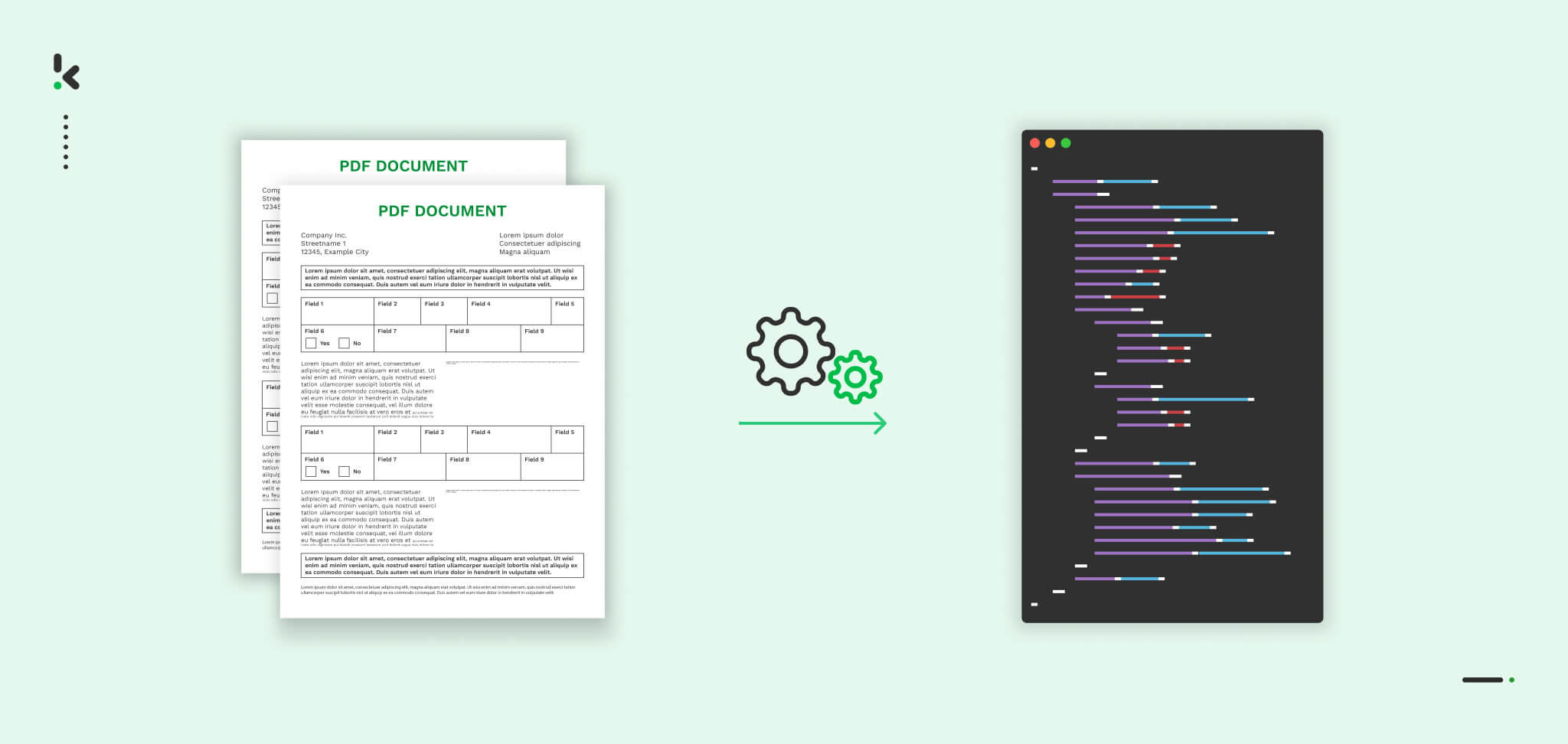
PDFs are the backbone of business communication, but their static nature makes data extraction a massive bottleneck for data-driven organizations. To stay competitive, businesses need to convert PDFs to JSON fast, in bulk, and securely to fuel their APIs, databases, and automated workflows.
Among the various output formats, JSON (JavaScript Object Notation) is the industry standard for structuring and exchanging data. However, converting thousands of unstructured PDFs—like invoices, contracts, or forms—requires more than just a basic converter. It requires AI-powered Intelligent Document Processing (IDP). By leveraging advanced OCR and Large Language Models (LLMs), you can transform complex document layouts into structured JSON schemas in seconds, all while maintaining the strict data security and compliance that generic online tools lack.
In this blog, we’ll show you exactly how to automate your PDF to JSON workflow for maximum speed and scalability.
Basic Tools for PDF to JSON Conversion
If you only need to convert a handful of simple PDF files, basic online converters can be a starting point. Tools like ILovePDF, Vertopal, ComPDFKit, and PDFFiller are useful for occasional, one-off conversions where the document has a standard layout and no complex formatting.
However, for professional workflows, these basic tools fall short in three critical areas:
- No Bulk Capability: Most basic converters require you to upload files one by one in a browser. This is a massive bottleneck when you need to process hundreds or thousands of documents at once.
- Poor Accuracy with Unstructured Data: Without advanced OCR and AI-powered LLMs, basic tools struggle to read scanned documents, skewed images, or complex nested tables. This results in “dirty data” that requires manual correction.
- Data Security Risks: Free online tools rarely offer the GDPR compliance, ISO certification, or data encryption required to handle sensitive business information. In many cases, these platforms may even use your uploaded documents to train their models, posing a significant privacy risk.
To convert PDFs to JSON fast, in bulk, and securely, businesses need to move beyond simple file converters and adopt an automated, AI-driven approach.
Challenges with Converting PDF to JSON
When attempting to convert PDFs to JSON in bulk, using basic online tools introduces significant operational risks. While they may work for a single file, scaling these methods creates bottlenecks that compromise both speed and security.
Here are the five primary challenges businesses face:
1. Inaccuracy with Unstructured Data
Basic converters lack the AI and Large Language Models (LLMs) needed to understand complex, unstructured layouts.
Why it matters: If the OCR fails to recognize nested tables or skewed text, the resulting JSON will contain errors. For automated systems like APIs or databases, “dirty data” can crash downstream workflows, requiring hours of manual cleanup.
2. No Bulk Capability
Most basic tools require manual, one-by-one uploads through a web interface.
Why it matters: To process documents fast and in bulk, you need API-driven automation. Manually uploading hundreds of invoices or contracts is not only slow but also impossible to scale as your business grows.
3. Professional Friction and Security Risks
Free platforms often rely on intrusive advertising and third-party trackers to stay profitable.
Why it matters: Beyond the poor user experience, these ads can pose security risks (malvertising). For a professional finance or legal team, relying on ad-supported tools is a liability that can compromise the integrity of the workstation.
4. Lack of Data Sovereignty and Privacy
Basic online tools rarely disclose where your data is stored or if it is used to train public AI models.
Why it matters: For businesses, data security is non-negotiable. Using non-compliant tools puts you at risk of violating GDPR or HIPAA regulations. Professional solutions ensure your data is encrypted, processed on secure servers, and never shared or used for model training.
5. Static Outputs vs. Dynamic JSON Schemas
Free tools provide a “one-size-fits-all” conversion that often lacks the structure needed for modern software.
Why it matters: To effectively integrate data, you need a custom JSON schema that matches your specific database fields. Basic tools don’t offer the flexibility to map data points, perform data masking, or integrate via webhooks (like Zapier or Make).
By addressing these potential issues, you can ensure your data stays secure and is transferred accurately. However, if you need to convert PDF files to JSON in bulk, prioritize data security, and require precise data for decision-making, document management software is the solution.
With software like Klippa DocHorizon, your company can streamline secure, reliable file conversion workflows. Curious how it works? Keep reading!
How to Convert PDF to JSON with Klippa DocHorizon
Klippa DocHorizon is an Intelligent Document Processing (IDP) platform that enables you to automate all kinds of document workflows, including the conversion of PDF files to JSON. And the best part? You can try it out for free!
Let’s take you through the process step by step.
Would you rather see it in action? Check out our detailed tutorial on how the process works with our platform.
Step 1: Sign up on the platform
To get started, sign up for free on the DocHorizon platform by entering your email address and password. After that, you’ll need to provide some basic details, such as your full name, company name, intended use case, and document volume. Once registered, you’ll receive €25 in free credits to explore the platform’s features and capabilities.
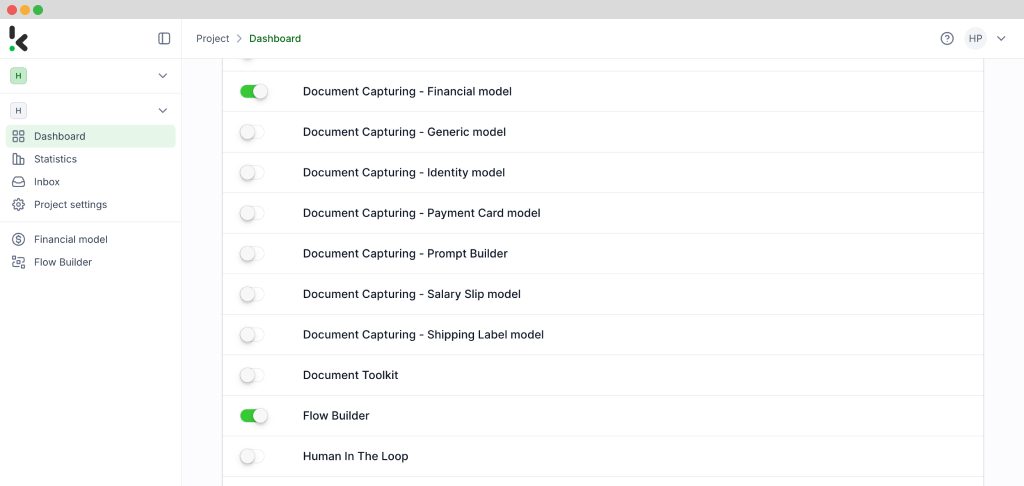
After signing up, create an organization within the platform and set up your first project to access the available services. If your goal is, for instance, to convert PDF invoices into JSON, simply enable the Financial Model and the Flow Builder services. With this setup, you’re ready to begin your document processing journey!
Step 2: Create a preset
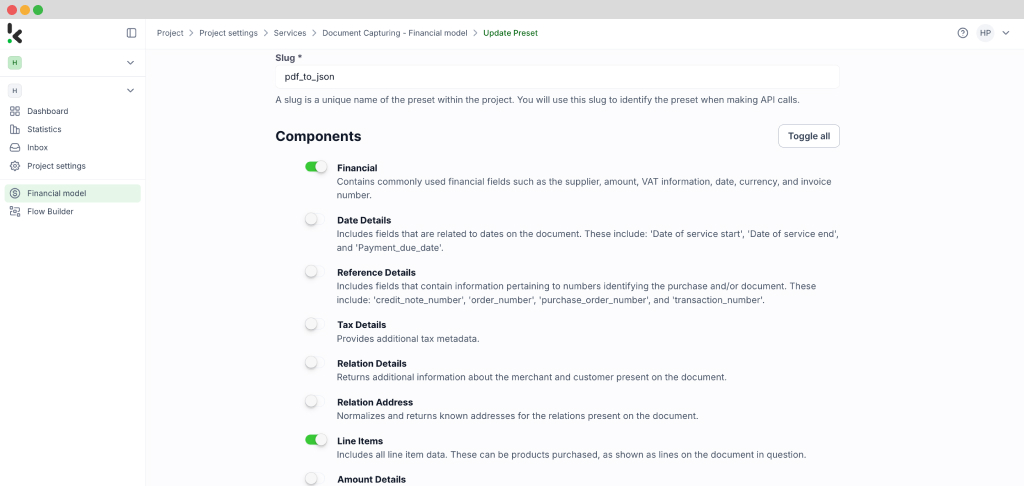
The next step in converting your PDF invoices into JSON is to create a document-capturing preset. A preset is a custom configuration that defines which data fields to extract from your documents, tailored to your specific needs.
Setting up a preset is straightforward. Begin by clicking on the Financial Model within the DocHorizon platform. From there, create a new preset and give it a name: let’s call it “PDF to JSON”. This preset will serve as the foundation for your data extraction workflow.
Next, select the components you wish to include. For this example, choose “financial“, which contains commonly used financial fields like supplier details, amounts, VAT information, and more. Additionally, enable the “line items” component to extract detailed data such as purchased products and quantities from your invoices.
Once you’ve configured the preset to suit your requirements, click “Save” to finalize your settings. With your custom preset in place, you’re now ready to proceed to the next step: building your flow for automated data extraction.
Step 3: Building your flow in the Flow Builder
Now that your preset is ready, it’s time to create a flow in the Flow Builder to automate the conversion process. A flow is essentially a sequence of steps that define how your PDF invoices are processed and converted into JSON.
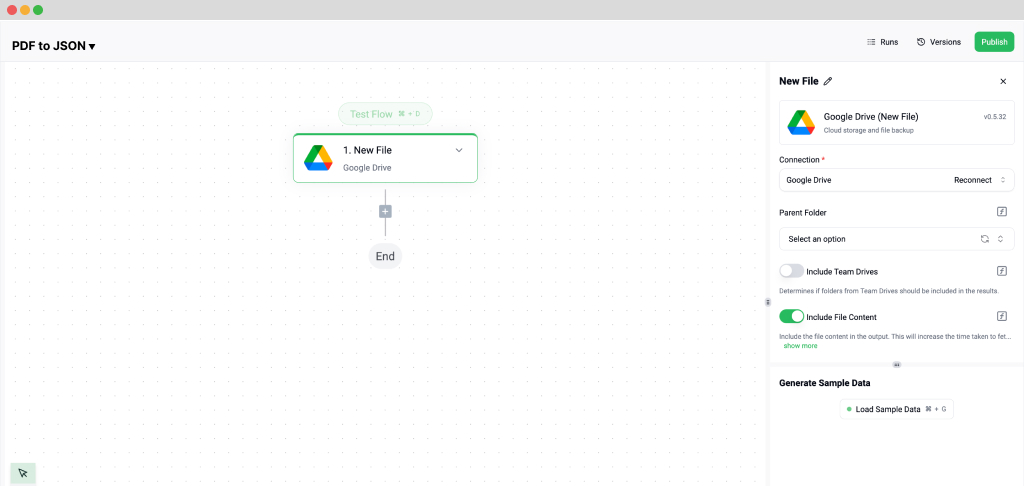
Start by navigating to the Dashboard and clicking on Flow Builder and then New Flow. Choose the From Scratch option to build your flow from the ground up. The first step is to select a trigger, a condition that initiates the process. This could be a new file uploaded to Google Drive, an email attachment, or an event in your database.
For this example, let’s use Google Drive as the trigger. Select New File, connect your Google account, and choose the parent folder where your invoices are stored. Make sure to check the box for Include File Content, which ensures the system processes the file’s data.
Test this step by clicking on Load Sample Data: remember to have at least one sample document in your input folder while setting up your flow.
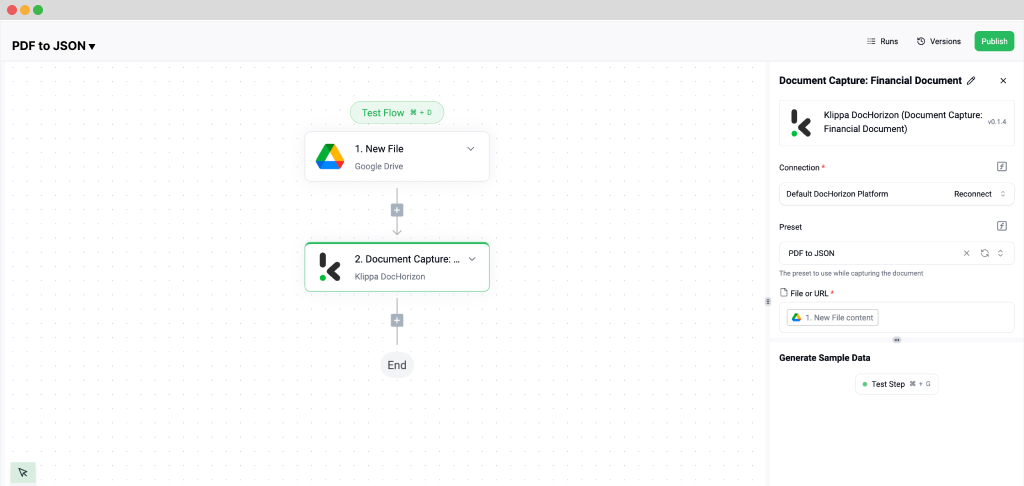
Next, it’s time to extract data from your PDF invoices. Add another step, scroll until you see Klippa DocHorizon, and select a Document Capture model. This step involves choosing the document type you’re working with. Since we’re processing invoices, select Financial Document Capture. Connect it to DocHorizon and choose the preset you created in Step 2.
Then, configure the File or URL field by selecting New File and inserting the file content. Use the data selector to define the content to be processed and run a test to ensure everything is working correctly. Once the test is successful, you’re ready to move on to the next step: setting up your output destination.
Step 4: Set Up the Output Destination
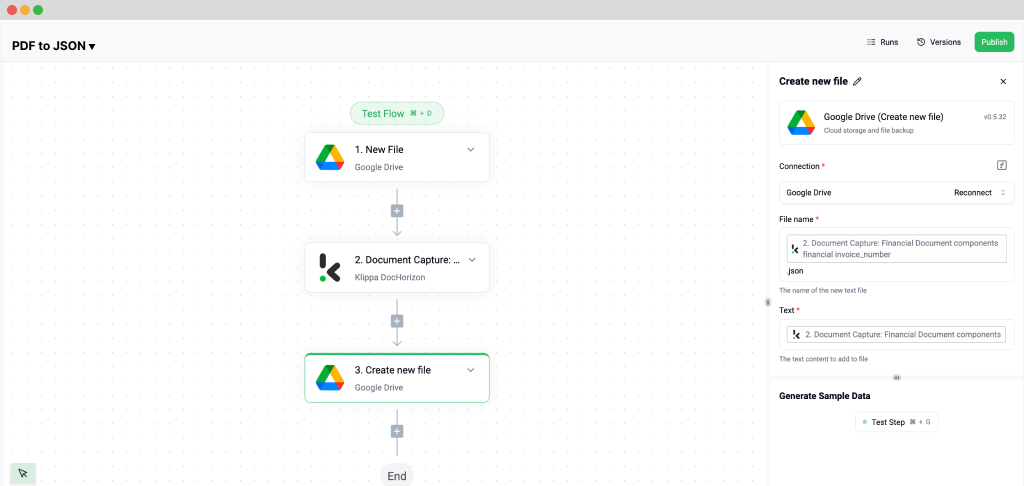
With your flow taking shape, the final step is to configure where the processed data will be sent. DocHorizon allows you to store the extracted JSON data in cloud storage, integrate it with an ERP system, or send it to an accounting platform like QuickBooks or Xero. For this example, let’s use Google Drive as the output destination and then click on Create New File.
Connect your Google account and specify the file name. To make the file easily identifiable, let’s name it using the invoice number. In the data selector, navigate to Document Capture → Components → Financial and insert the invoice number field. Make sure to append .json to the folder name by clicking on it and typing it in there to save it as a JSON file.
Next, choose the content to include in the JSON file. Select all data captured by your preset by navigating to Document Capture: Financial Document and inserting the Components. Test this step to ensure the JSON file is created correctly with all the required data.
Finally, test the entire flow to confirm everything is functioning as expected. And that’s it! Your automated flow for converting PDF invoices to JSON is complete.
Now, it’s your turn to try creating a flow tailored to your specific use case. If you need help, check out our documentation or video tutorials for additional guidance.
Automate PDF to JSON Conversion with Klippa
Looking to simplify your PDF to JSON conversion? Klippa DocHorizon is here to make the process effortless and efficient.
Klippa DocHorizon is a powerful automated document processing platform. It retrieves PDFs from your chosen input source, extracts the necessary data, and converts it into structured JSON files. The processed JSON is then forwarded to your desired destination—all without any manual effort.
While free tools may seem convenient, Klippa DocHorizon provides the complete solution for businesses that need more than just basic functionality. Here’s why Klippa stands out:
- Advanced OCR Technology: Extract data with precision, even from scanned or complex PDF layouts.
- Customizable Outputs: Tailor your JSON files to meet specific requirements seamlessly.
- Scalable and Secure: Process thousands of files efficiently while ensuring data security.
- Seamless Integration: Connect with APIs, cloud storage, and existing systems effortlessly.
Free tools may work for occasional use but often struggle with scalability, accuracy, and customization. Klippa DocHorizon eliminates these limitations, providing a reliable and advanced solution for businesses of any size.
With clear documentation and an easy setup process, implementing Klippa is simple. Beyond ease of use, it helps save costs, improve workflows, and speed up processing times, boosting productivity and business outcomes.
Take the next step to optimize your workflows. Contact our team for more information or book a free demo today to see Klippa DocHorizon in action!
FAQ
To convert PDFs in bulk at high speed, you should use an AI-powered IDP platform like Klippa DocHorizon. Unlike manual converters, these systems use API-driven automation to process thousands of documents simultaneously, delivering structured JSON data directly to your database or ERP in seconds.
What makes AI-powered PDF to JSON conversion more accurate?
Modern conversion tools leverage Large Language Models (LLMs) and advanced OCR to understand the visual and semantic context of a document. This allows the system to accurately extract data from unstructured layouts, complex tables, and nested fields that traditional, rule-based converters often miss.
Is it secure to use online tools for PDF to JSON conversion?
Many free online tools pose significant data privacy risks as they may store your documents or use them to train public AI models. For business-critical data, it is essential to use a GDPR-compliant and ISO 27001-certified provider like Klippa, which ensures data encryption and offers data sovereignty (regional processing).
Can I automate PDF to JSON conversion via API?
Yes. Professional IDP platforms provide a REST API that allows you to integrate conversion directly into your software stack. This enables real-time data extraction where PDFs are automatically sent to the API and a structured JSON response is returned instantly for further processing.
How does Klippa differ from no-code AI parsers?
While no-code parsers are great for simple tasks, Klippa DocHorizon is built for enterprise-scale bulk processing. It offers higher accuracy for unstructured data using proprietary LLM logic, advanced data masking features for privacy, and more robust security certifications required by large organizations.
What is a custom JSON schema in document extraction?
A custom JSON schema allows you to define the exact structure of your output data (e.g., field names, data types, and hierarchy). This ensures that the extracted information is perfectly formatted to match your specific API or database requirements, eliminating the need for manual post-processing.